Instagram and Facebook prerequisites: professional account, linked Page and Business Portfolio
Perroly connects to Instagram and Facebook through Meta’s official API, the same one every serious tool on the market uses. That API requires three things before anything can be connected: a professional Instagram account, a Facebook Page, and the two linked together. At Perroly, the Page is mandatory: it unlocks unified messaging and other features, even if you never intend to publish on it.
For a clean, durable connection, especially if ads or an agency ever enter the picture, those accounts also need to be gathered inside a Meta Business Portfolio. This guide covers all of that once: once done, it holds for Perroly as much as for any other tool.
Sections marked Optional only apply to specific cases (a particular error, needing to start over…). If that is not you, skip straight to the next section — no need to read everything in order.
Before you start
Three points to check before you begin: the link between your accounts is one-to-one, your Instagram needs to be professional, and you need the right rights on the Page.
- An Instagram account can only be linked to one Facebook Page, and a Page to only one Instagram account.
- The Instagram account must be Professional (Business, recommended) or Creator, never personal.
- You need full control of the Page (newer Pages) or the Admin role (classic Pages). Check this under Facebook Page > Settings > Page access.
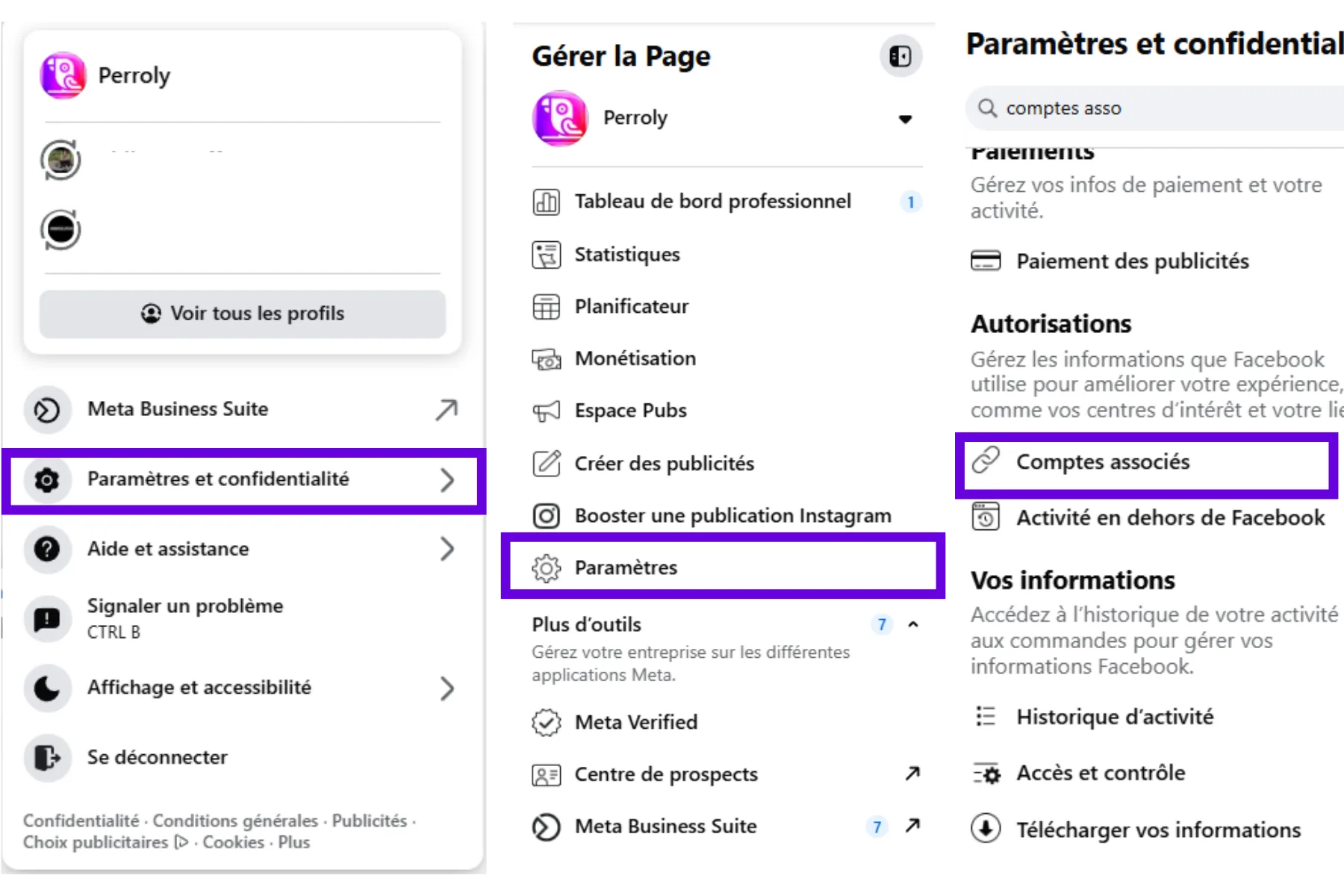
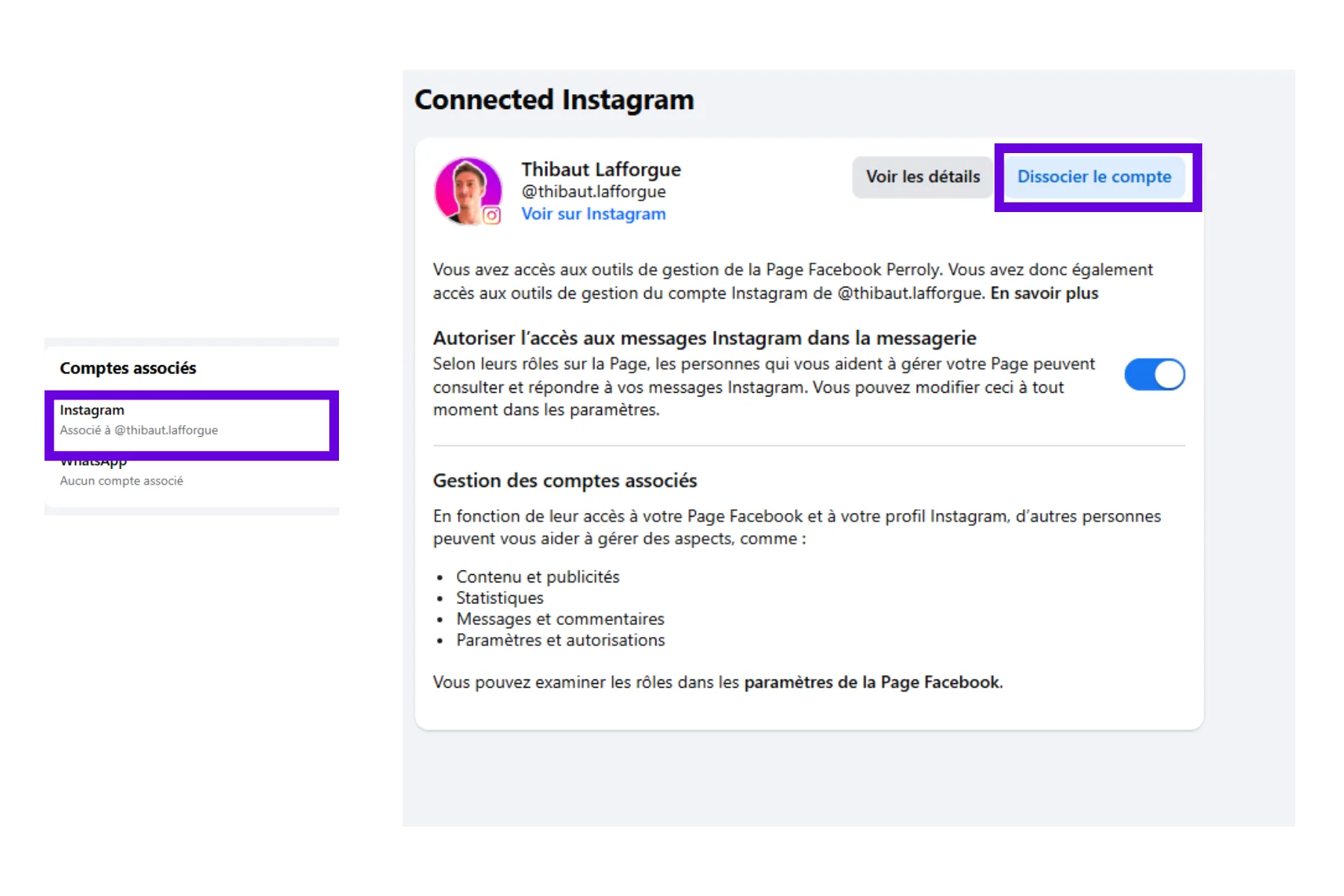
- If you are unsure about your current setup, or got off to a bad start, you can always unlink Instagram and the Page, or remove an asset from a portfolio, and start fresh: see "Remove a Page from the portfolio" and "Unlink Instagram from the Page" further down.
Switch your Instagram to a professional account
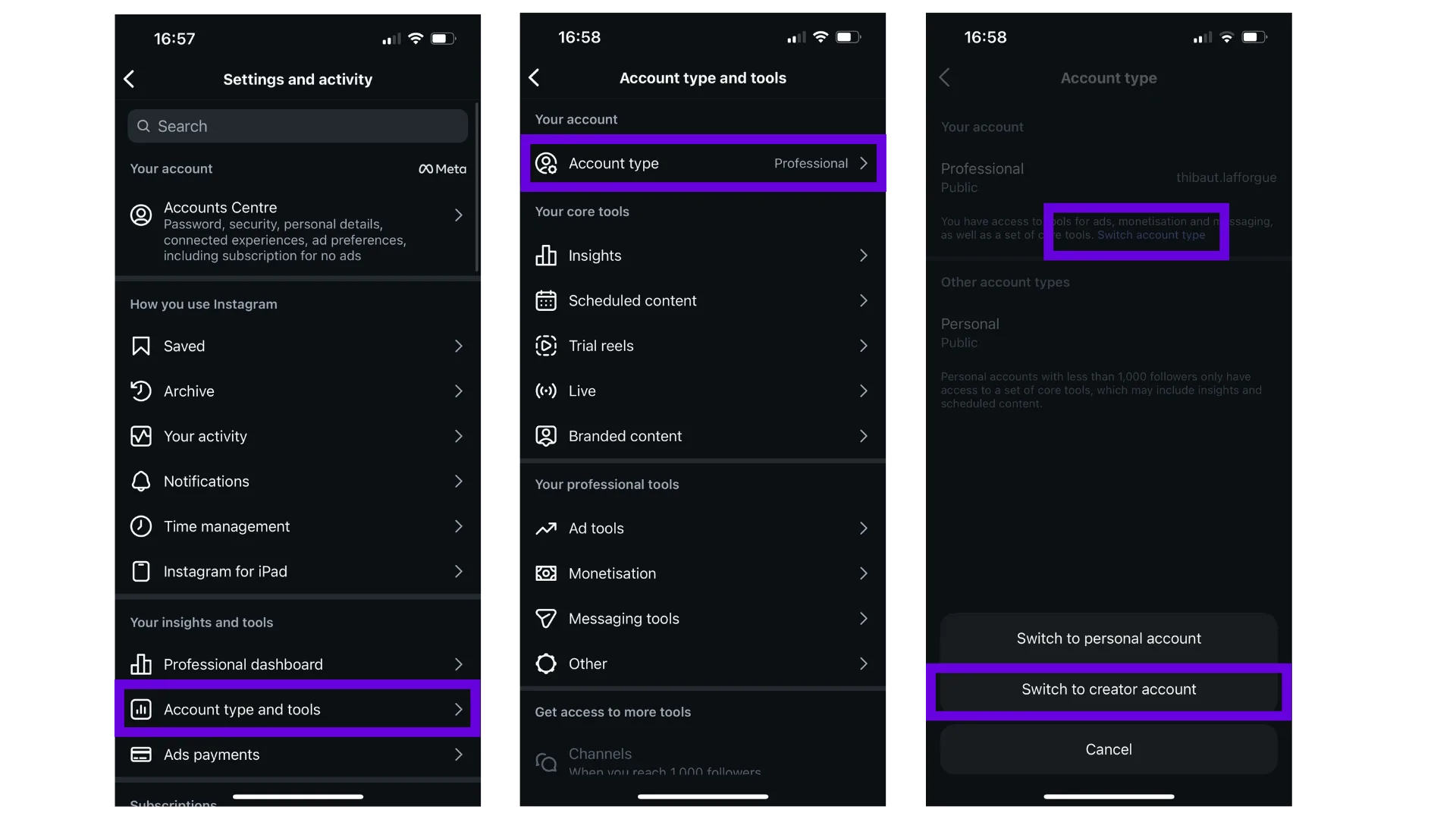
Perroly cannot connect to a personal Instagram account: that is a limit set by Meta’s API, not by Perroly. You need a Professional (Business) or Creator account. Switching is free and reversible.
From the Instagram app: Profile > Menu (☰) > Settings and privacy > Account type and tools > Switch to professional account, then pick Business. Never switch a professional account back to personal afterward: you would lose all your analytics.
Gather your accounts in a Business Portfolio (recommended)
This is the path we recommend by default. It takes a little longer to set up, but it is the only one that has your accounts owned by the business rather than a personal profile, lets you plug in ads cleanly, and lets an agency get partner access without you handing over your login details.
The Business Portfolio (on business.facebook.com, under Business settings) is the ownership layer for your accounts, not to be confused with Business Suite, which is only the management dashboard on top of it.
If you run ads or work with an agency, the ad account and partner access are also set up from this portfolio: see the Meta ads prerequisites guide.
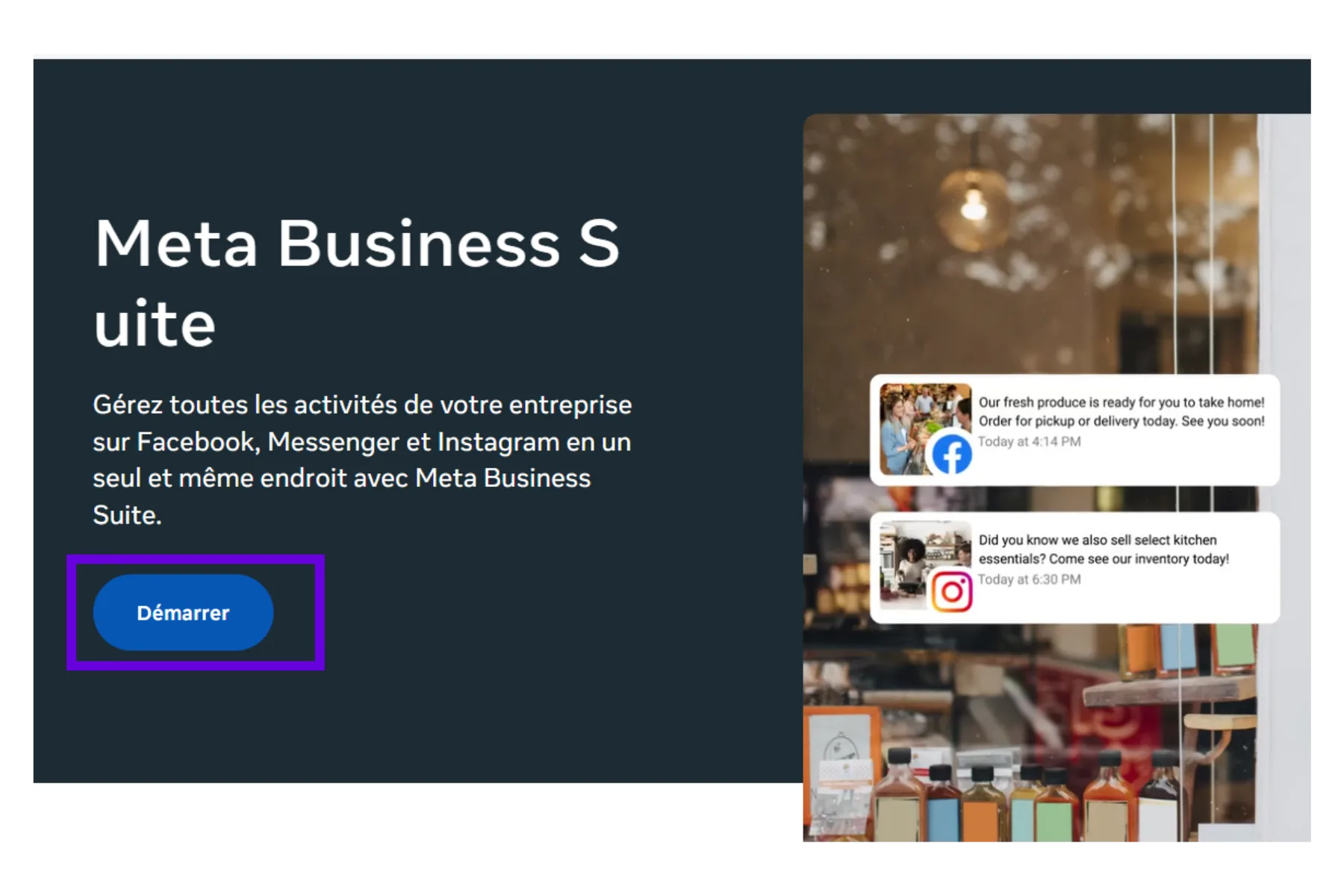
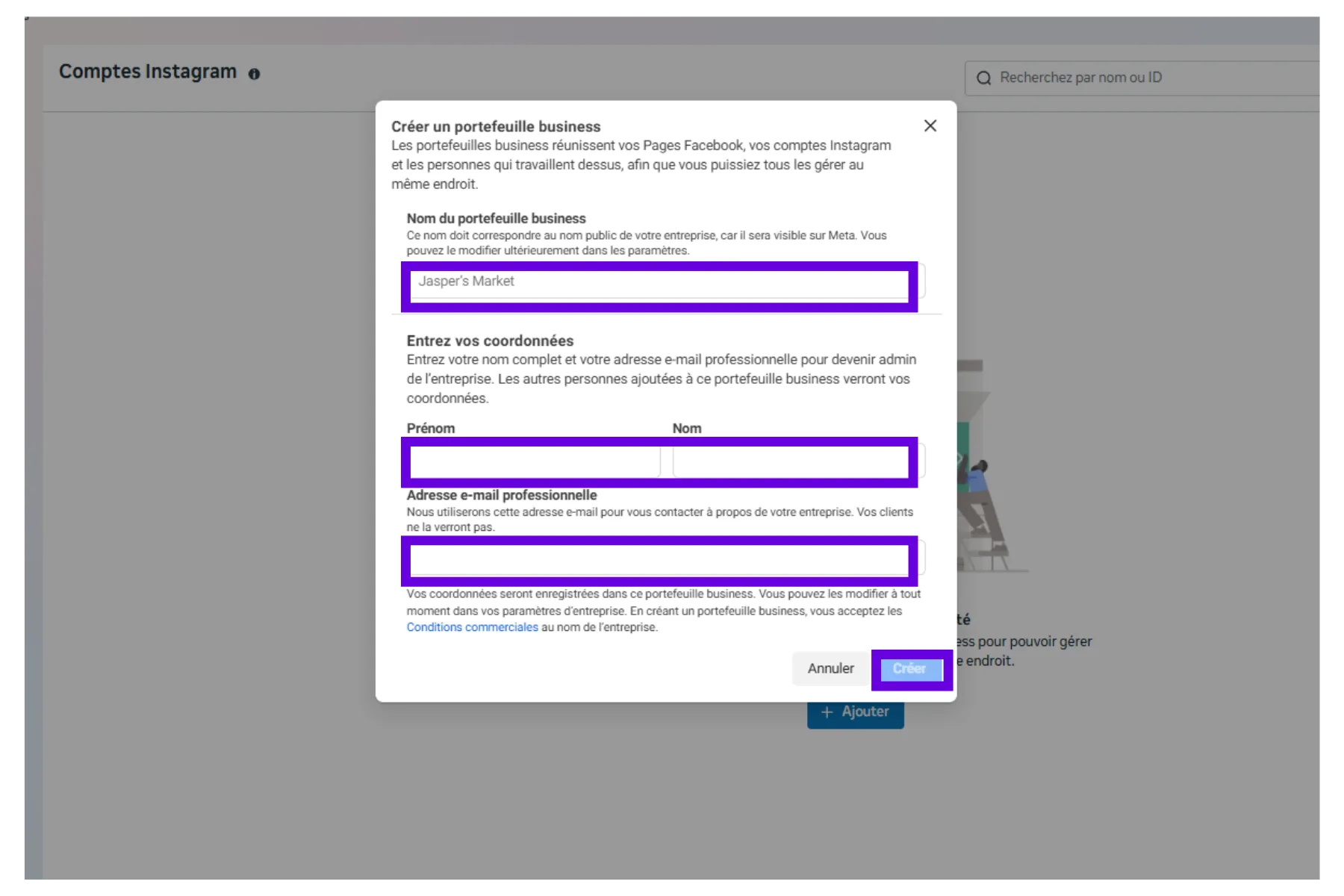
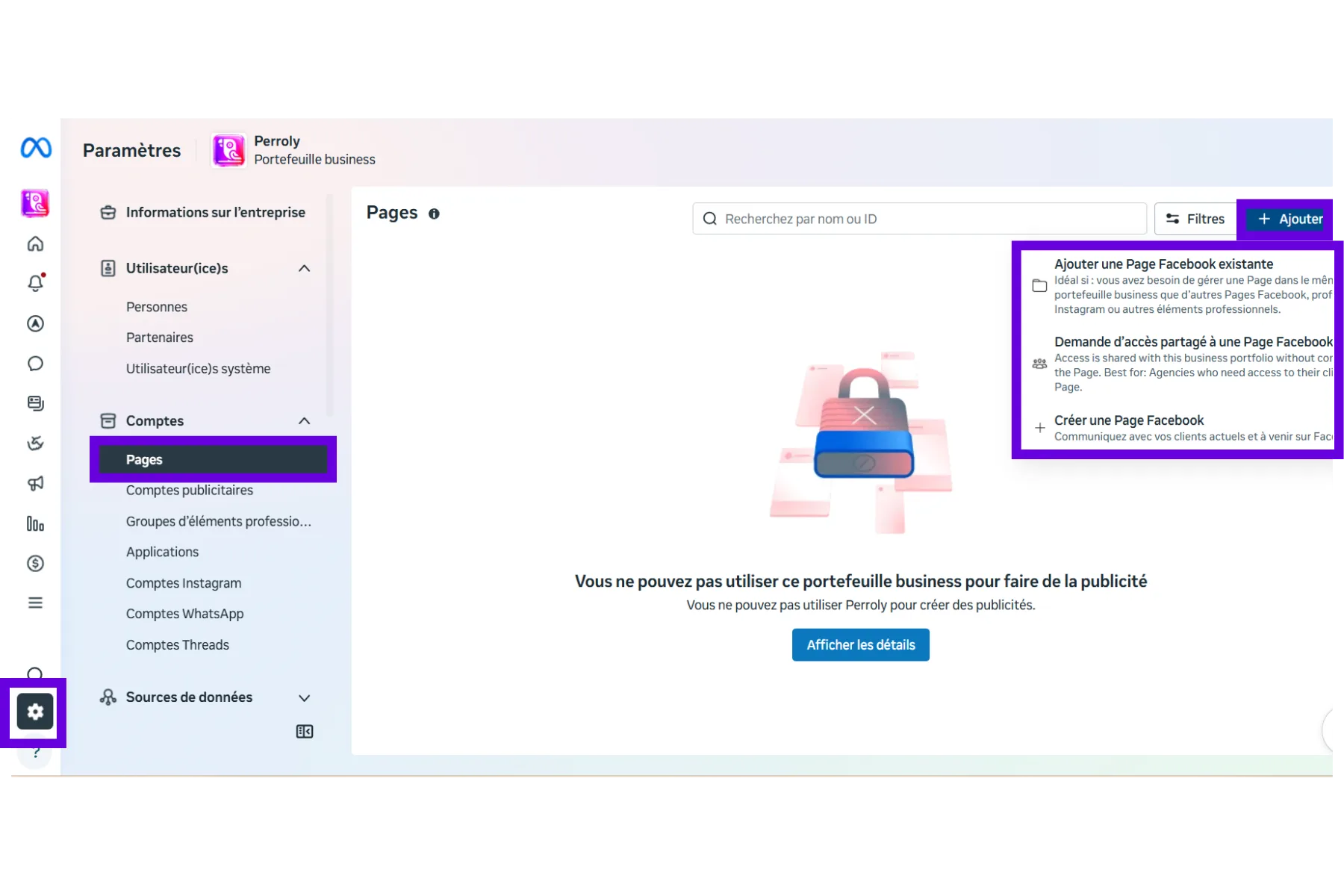
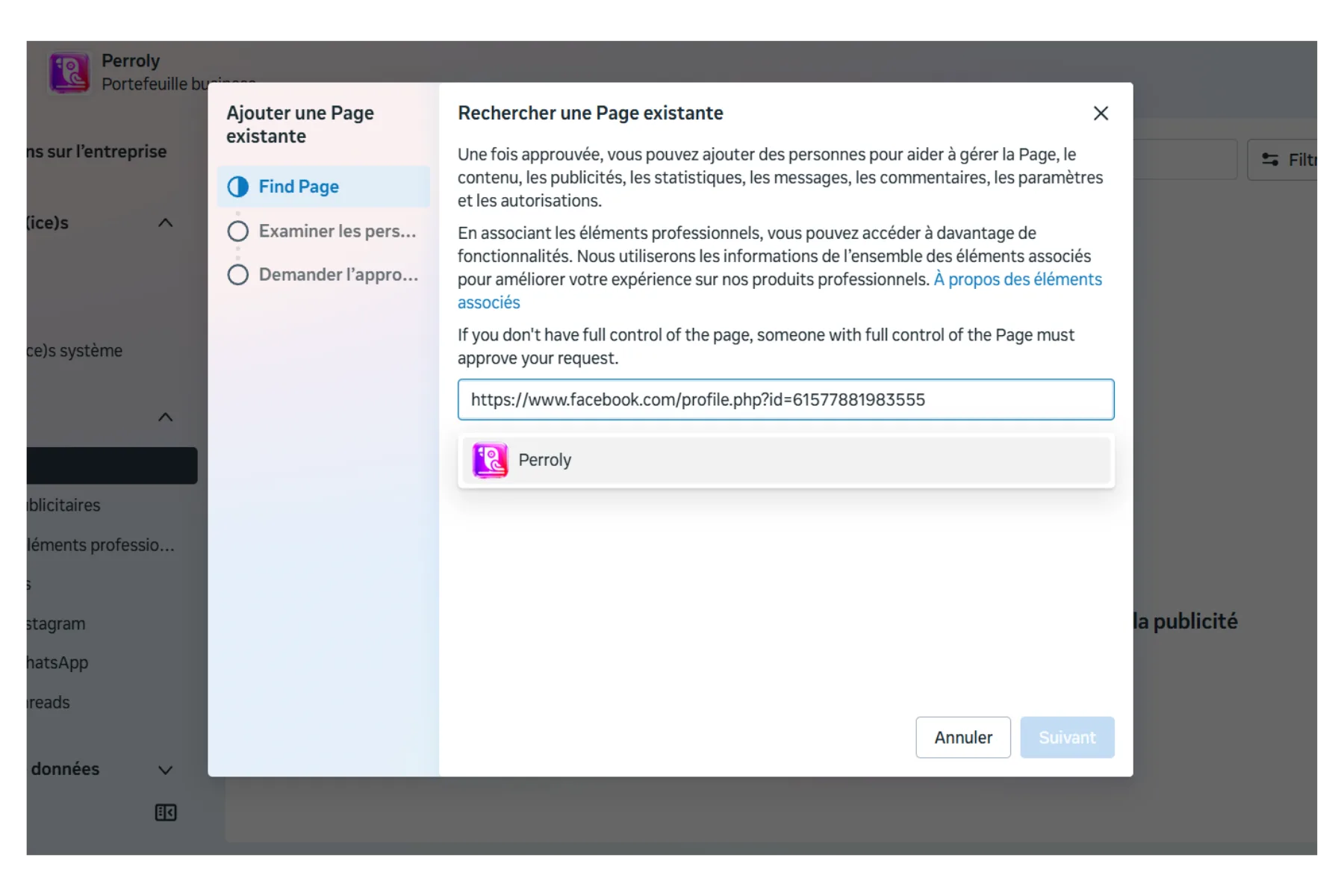
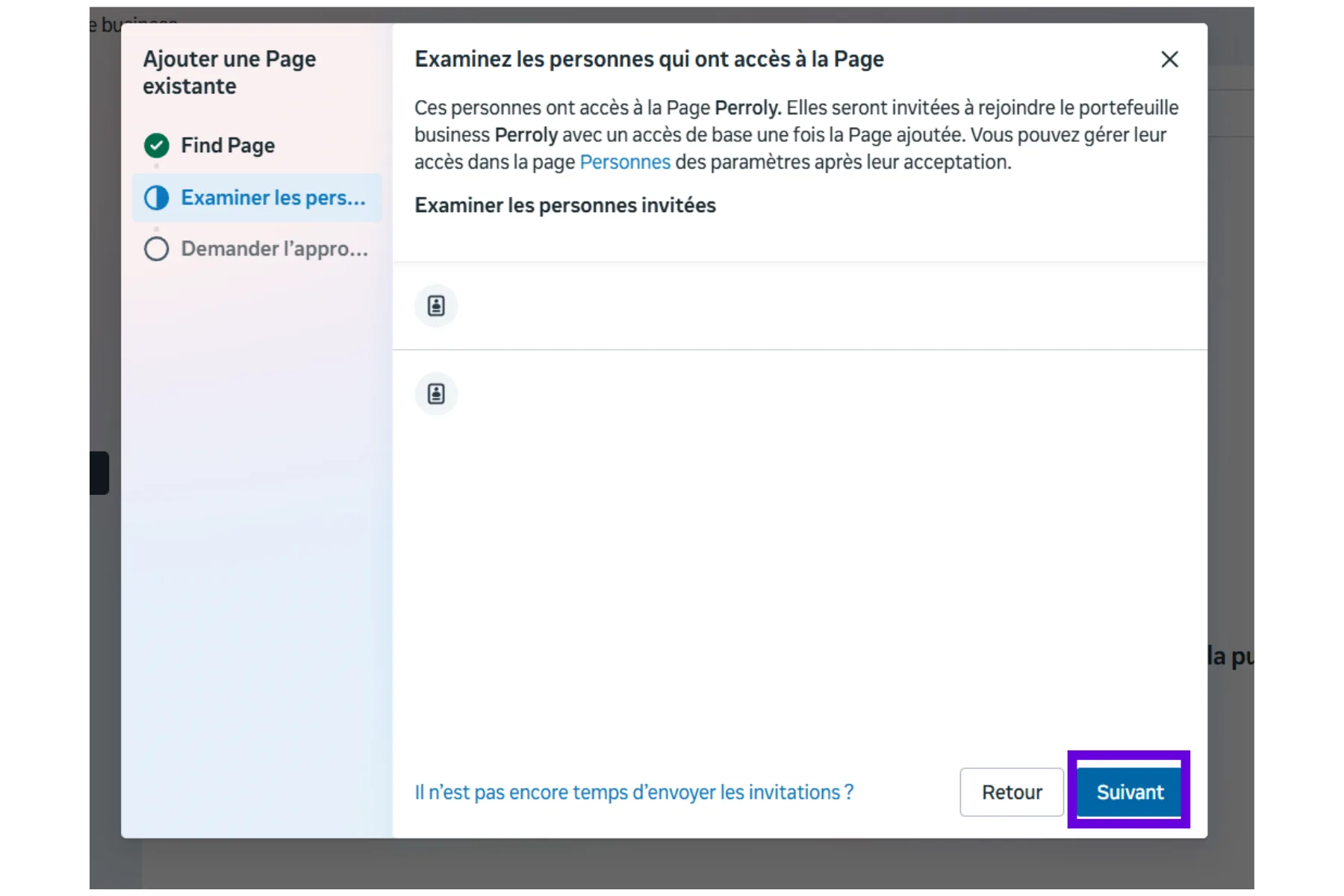
Add the Instagram account to your portfolio
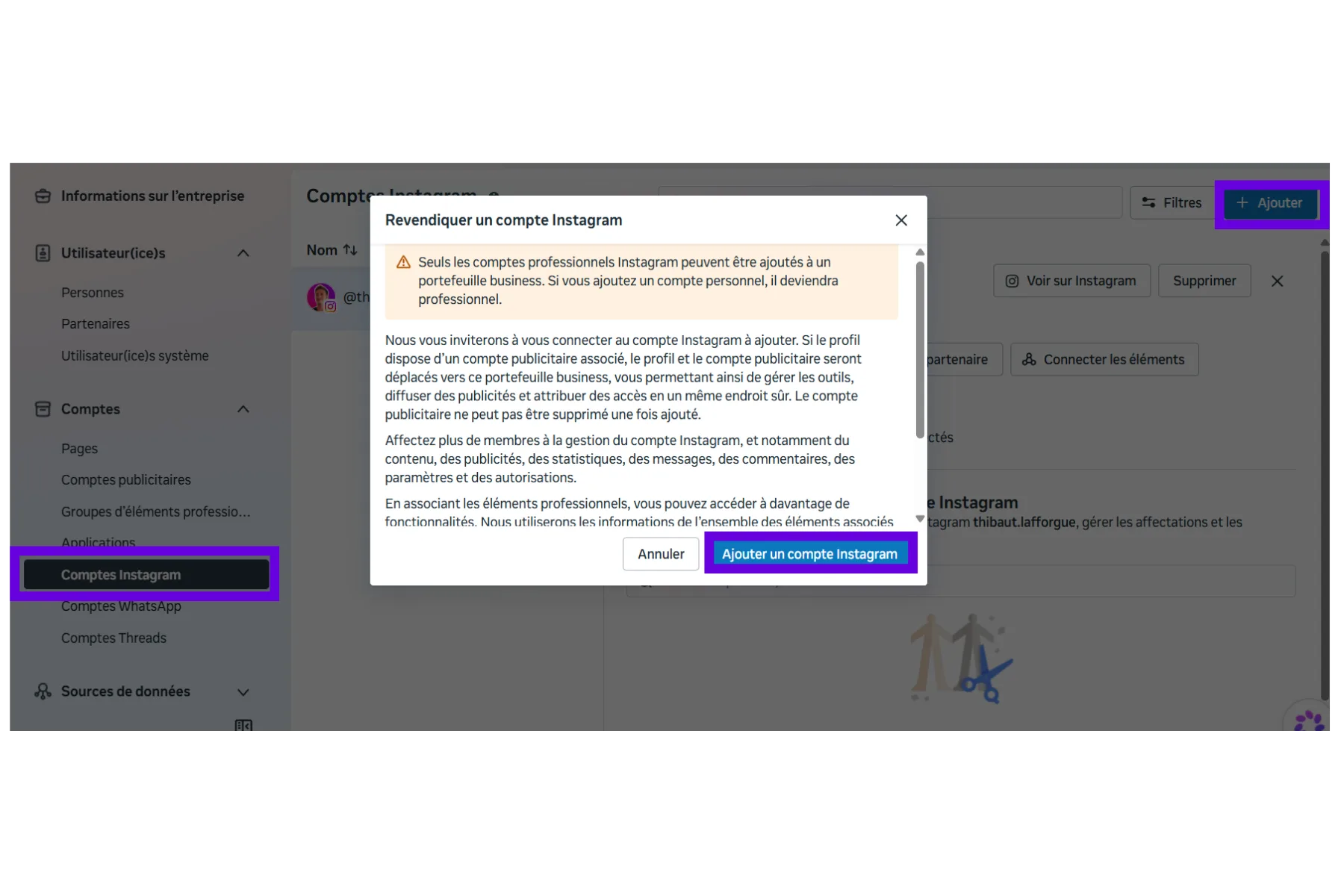
In Business settings > Accounts > Instagram accounts > Add, claim the account. One useful detail: if the account you are adding is still personal, Meta automatically converts it to professional at this step — no need to worry if you skipped the manual conversion above.
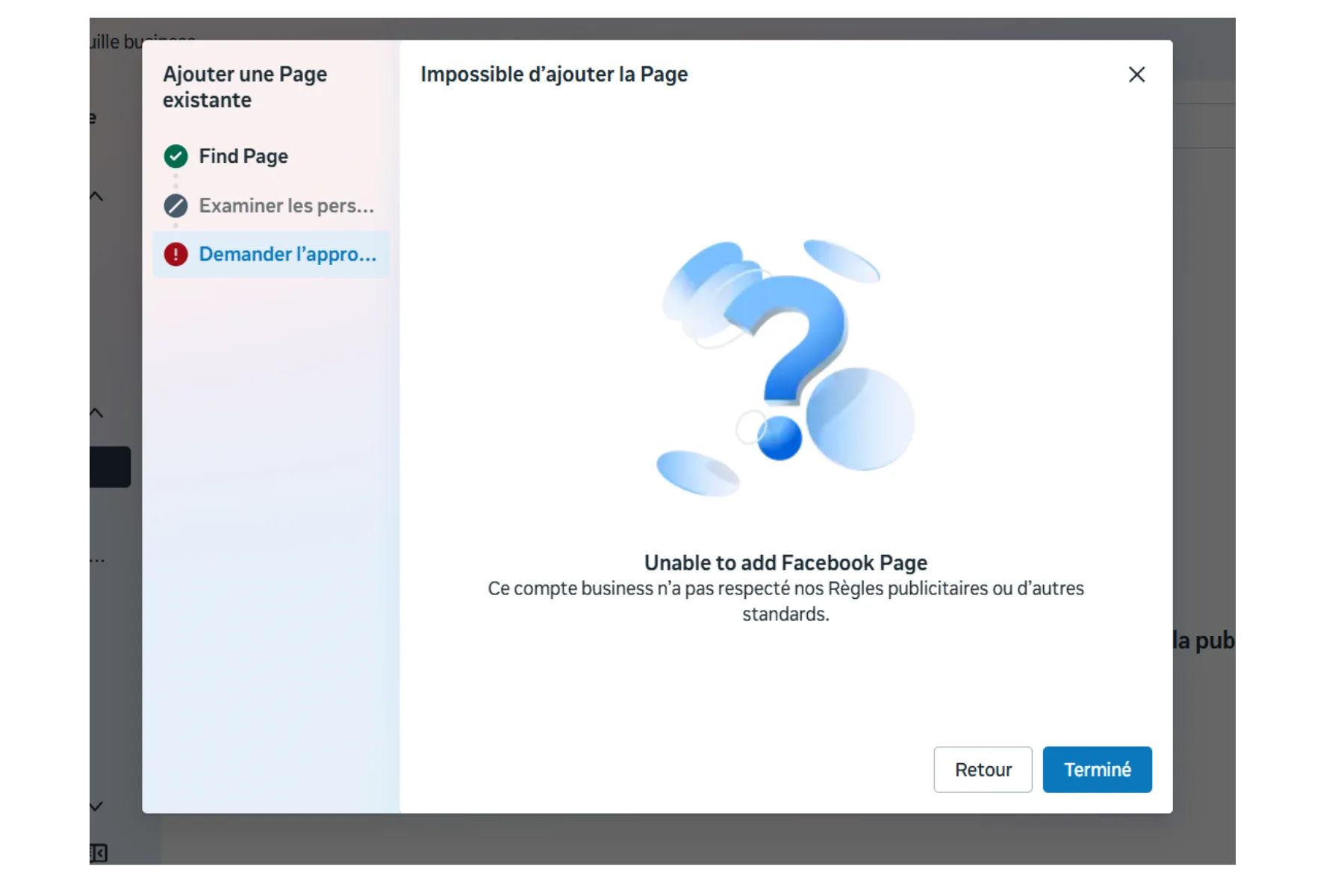
If adding the Page fails: "this business account has not followed our policies"Optional
Meta sometimes refuses to add the Page to the portfolio with a message like "Unable to add Facebook Page" or "This business account has not followed our Advertising Policies or other standards" — even on a brand-new Page, with no Instagram or portfolio attached. The message targets your business portfolio (or the personal Facebook profile behind it), not the Page itself: it is an ad-integrity system block from Meta, often an automatic false positive on a recent portfolio with no history.
- Open Account Quality (business.facebook.com/accountquality) or Business Help Center > Account status overview, select the restricted account, then Request a review under "What you can do."
- Prepare an identity or business verification (ID, business document, two-factor authentication, payment method): Meta often asks for it, and having it ready speeds things up.
- Do not send multiple requests: you only get about three review requests before running out of options. One solid request beats several rushed ones. Expect roughly 24-72 hours for minor cases.
- Also check the Account Quality of your personal Facebook profile: sometimes it is the profile that is restricted, which contaminates the portfolio.
- As a last resort, a brand-new portfolio can sometimes succeed in claiming the Page — but not on repeat, Meta reads repeated attempts as circumvention.
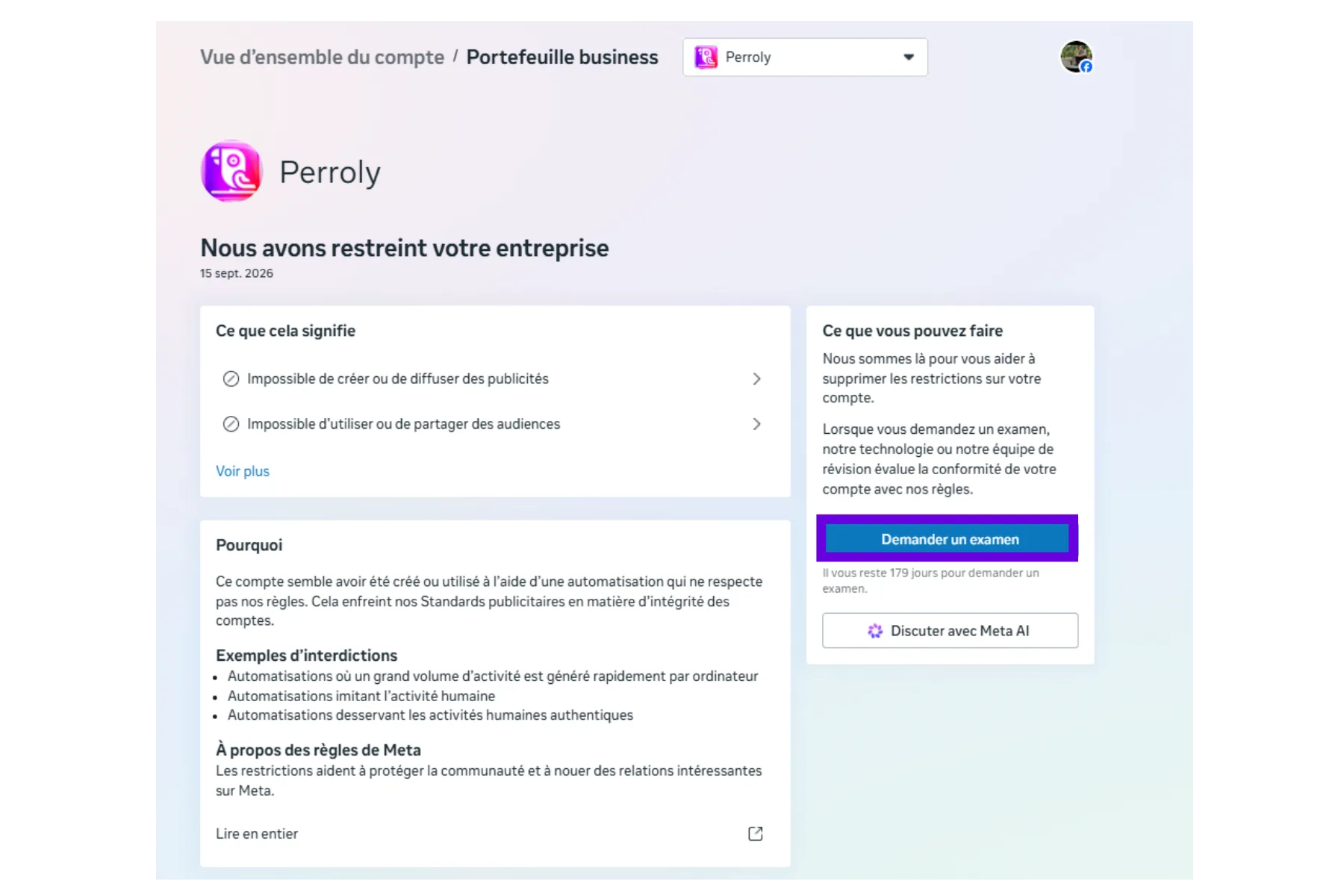
Fallback path: connect Perroly before the portfolio is unblockedOptional
This restriction only affects advertising. Perroly’s core features — publishing, messaging, analytics — rely on control of the Page and its link with Instagram, not on the Page belonging to a portfolio. You can therefore connect your accounts and be operational right away, portfolio blocked or not, and sort out the portfolio (and ads) once the review clears.
One caveat to keep in mind: this path assumes your personal Facebook profile is not itself restricted. If it is, even the basic connection will get stuck: the profile needs to be unblocked first.
- Link Instagram directly to the Page you already control (see "Link the Page and the Instagram account" below), without going through the portfolio.
- Connect your accounts to Perroly: publishing and messaging work immediately.
- Pick up the portfolio, then the ad account, once Meta’s review is done.
The access level each asset needs
Once added to the Business Portfolio, the Page and the Instagram account do not need the same permission level.
Access level required in the Business Portfolio
Link the Page and the Instagram account
The link needs to be bidirectional: Facebook must recognize the Page as linked to that Instagram account, and Instagram must recognize the account as linked to that Page. Linking from one side usually makes the link appear on the other, but a confirmation may be required.
From Facebook (recommended): go to your Page’s profile (not your personal profile), then Settings > Linked accounts > Instagram > Connect account. Make sure to check the option that allows access to Instagram messages in the inbox: without it, Perroly’s unified inbox will not surface any Instagram messages.
From Instagram (alternative): Edit profile > professional information > Page > Connect, then pick the Page. This flow can route you through the Accounts Center, that is normal: what matters is the result, a link between the Page and the professional Instagram account.
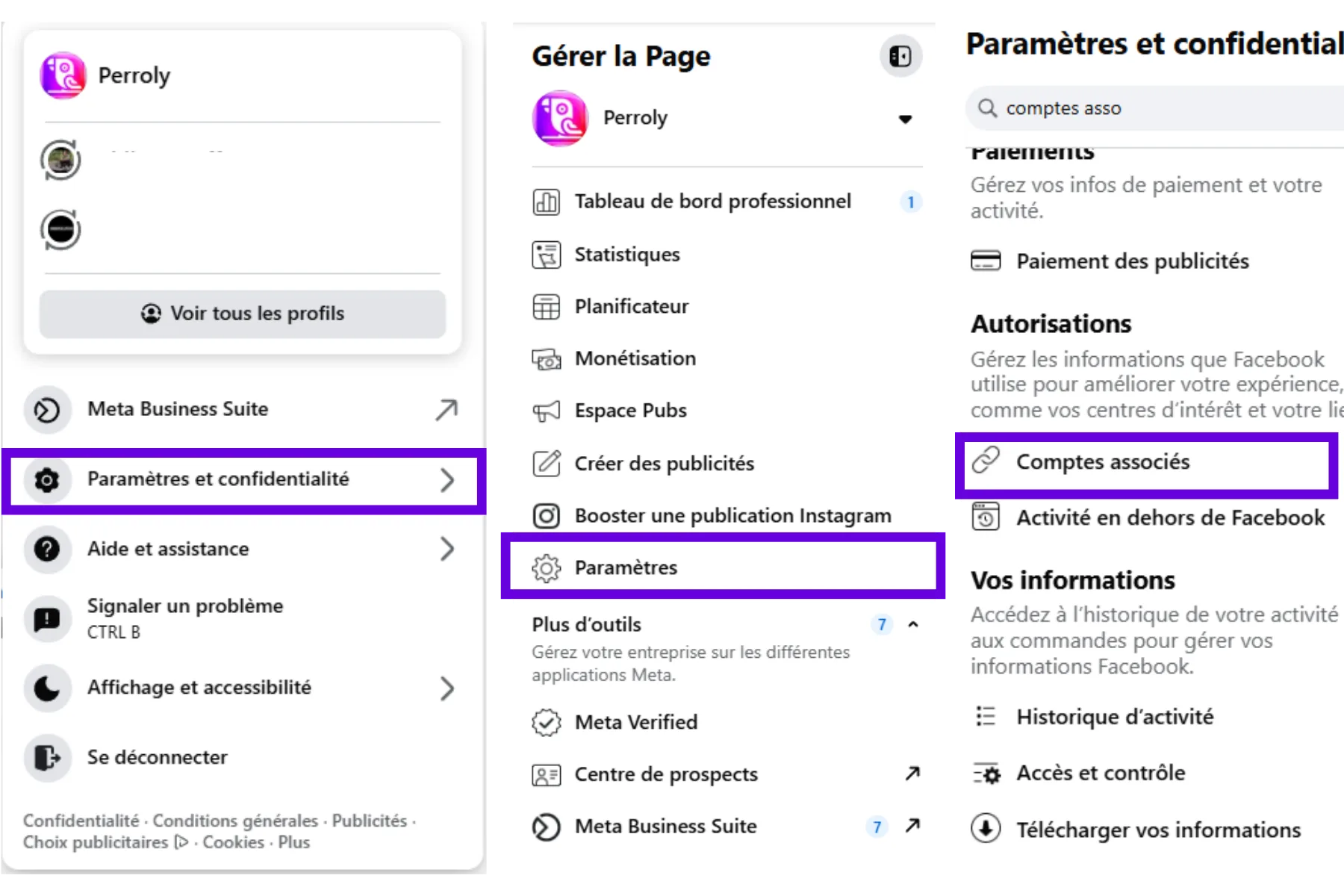
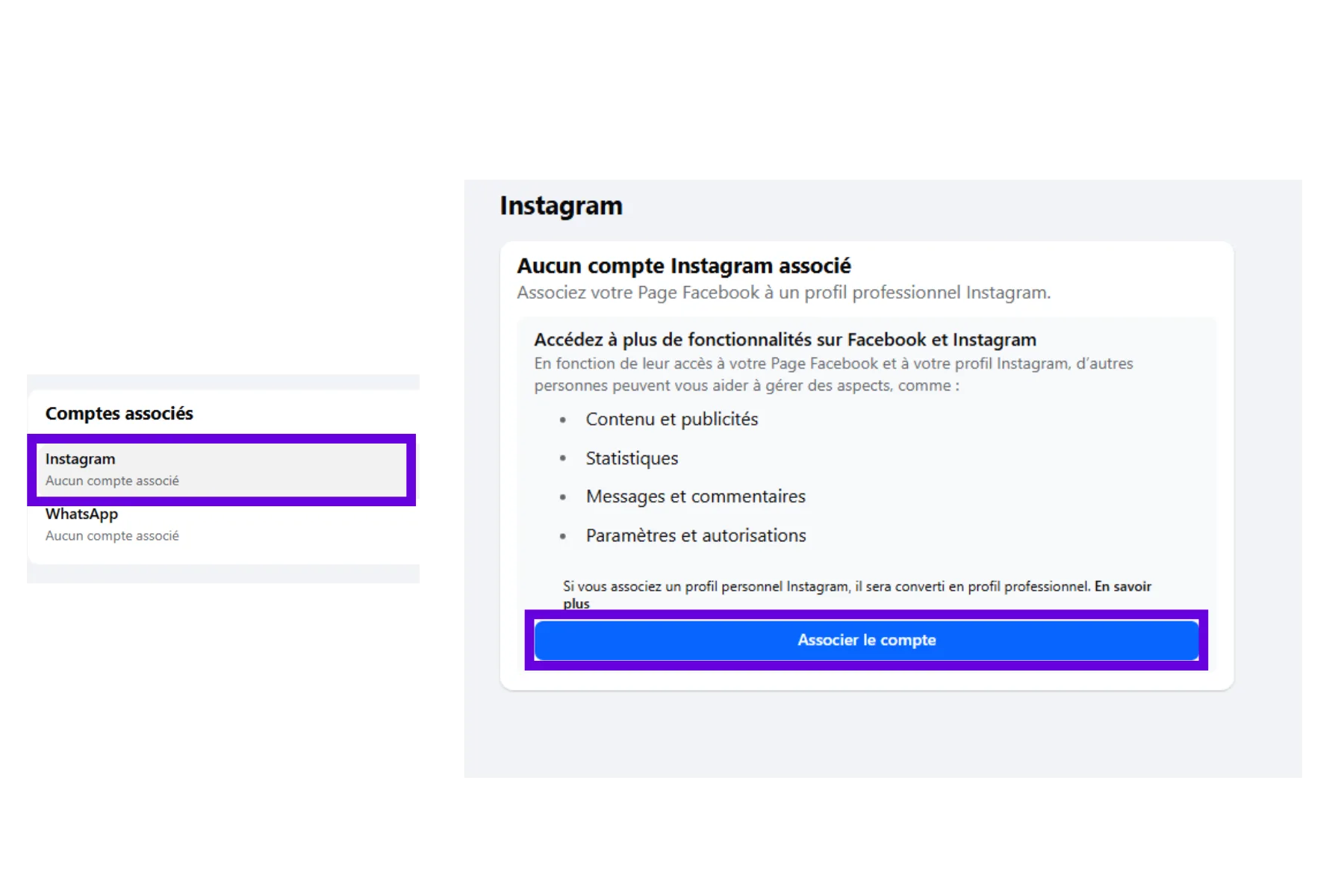
Remove a Page from the portfolioOptional
Need to start over, or remove a Page added by mistake? From Business settings > Accounts > Pages, select the Page, then Remove, and confirm. The Page keeps existing: whoever managed it keeps their access, only its attachment to that portfolio disappears. Same logic for an Instagram account, from Instagram accounts.
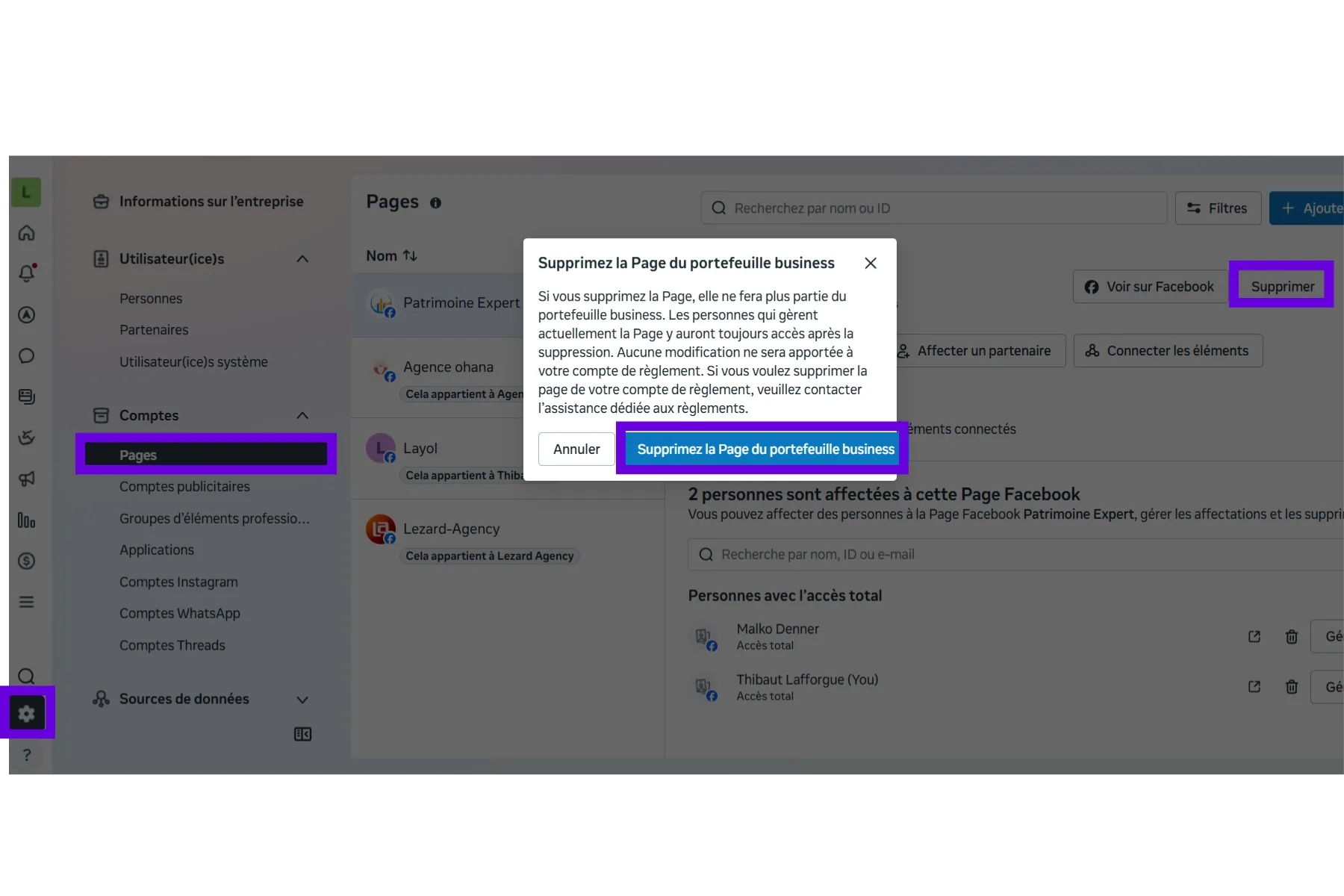
Special casesOptional
You work alone and will never run ads. You can skip the Business Portfolio and stick to the Page ↔ Instagram link above before connecting Perroly. The Page stays mandatory. But as soon as ads or an agency come into play, switch to the Business Portfolio method, or you will need to restructure everything.
Your Page and Instagram already talk to each other in Business Suite. Good news: the link already exists and travels with the accounts. All that is left is bringing them into the portfolio (previous section), the linking step is already done.
Meta refuses to add your Page to the portfolio. See "If adding the Page fails" above: this is almost never a problem with the Page itself, and a fallback path lets you connect Perroly without waiting for the review to finish.
Check that everything is in order
Do not trust what Business Suite displays: what Perroly reads, like the ads system, is the ownership of your accounts inside the Business Portfolio, not what the screen shows. Having "linked" your accounts in the Accounts Center, or seeing them in Business Suite, is not enough.
Under Business settings, you should see your Page and your Instagram account under the same portfolio. If the Instagram account is missing even though you "linked" it elsewhere, redo the link from the Page side (previous section).
Capture d’écran à ajouter
Business settings, with the Page and the Instagram account gathered under the same portfolio.
Connect your accounts to Perroly
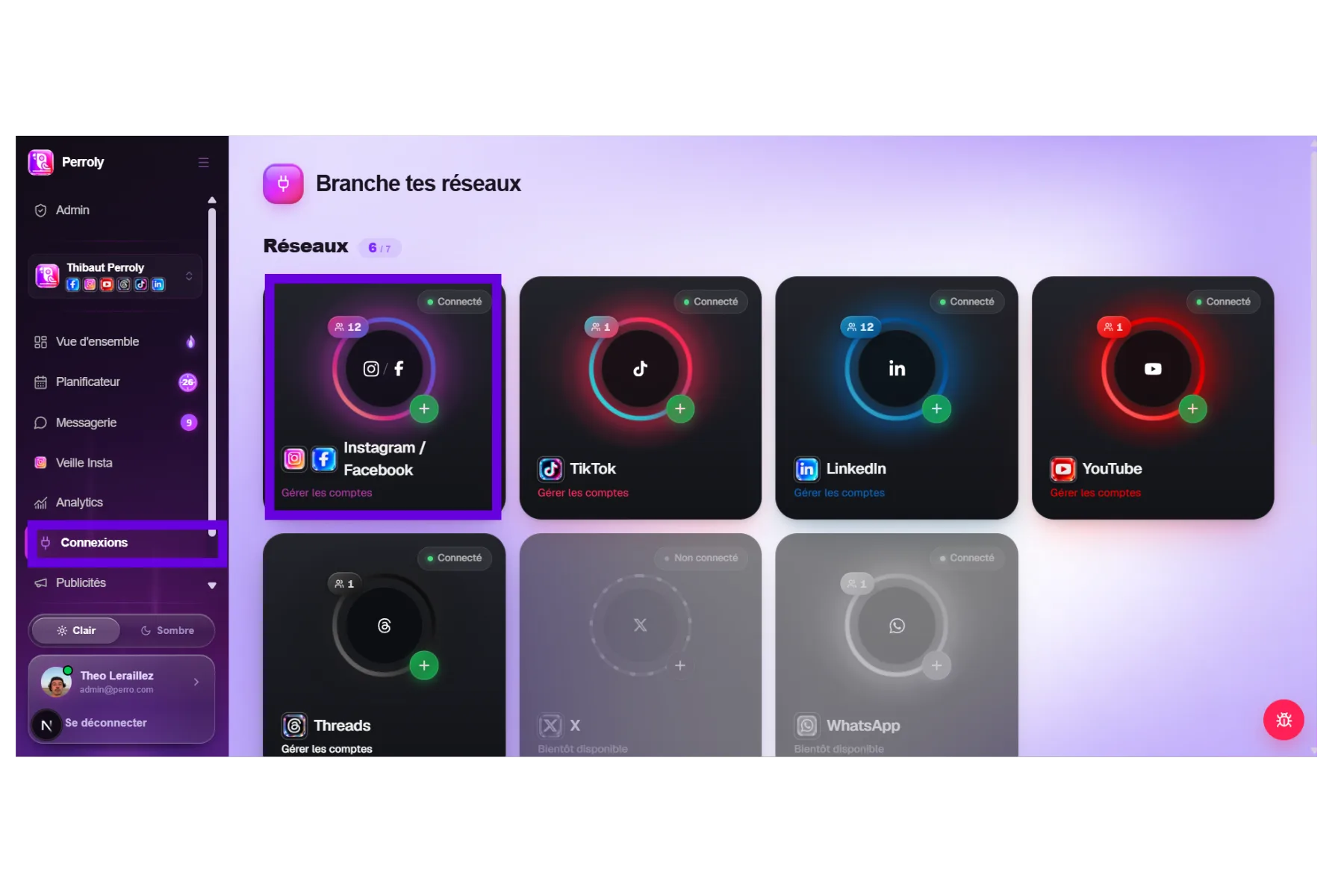
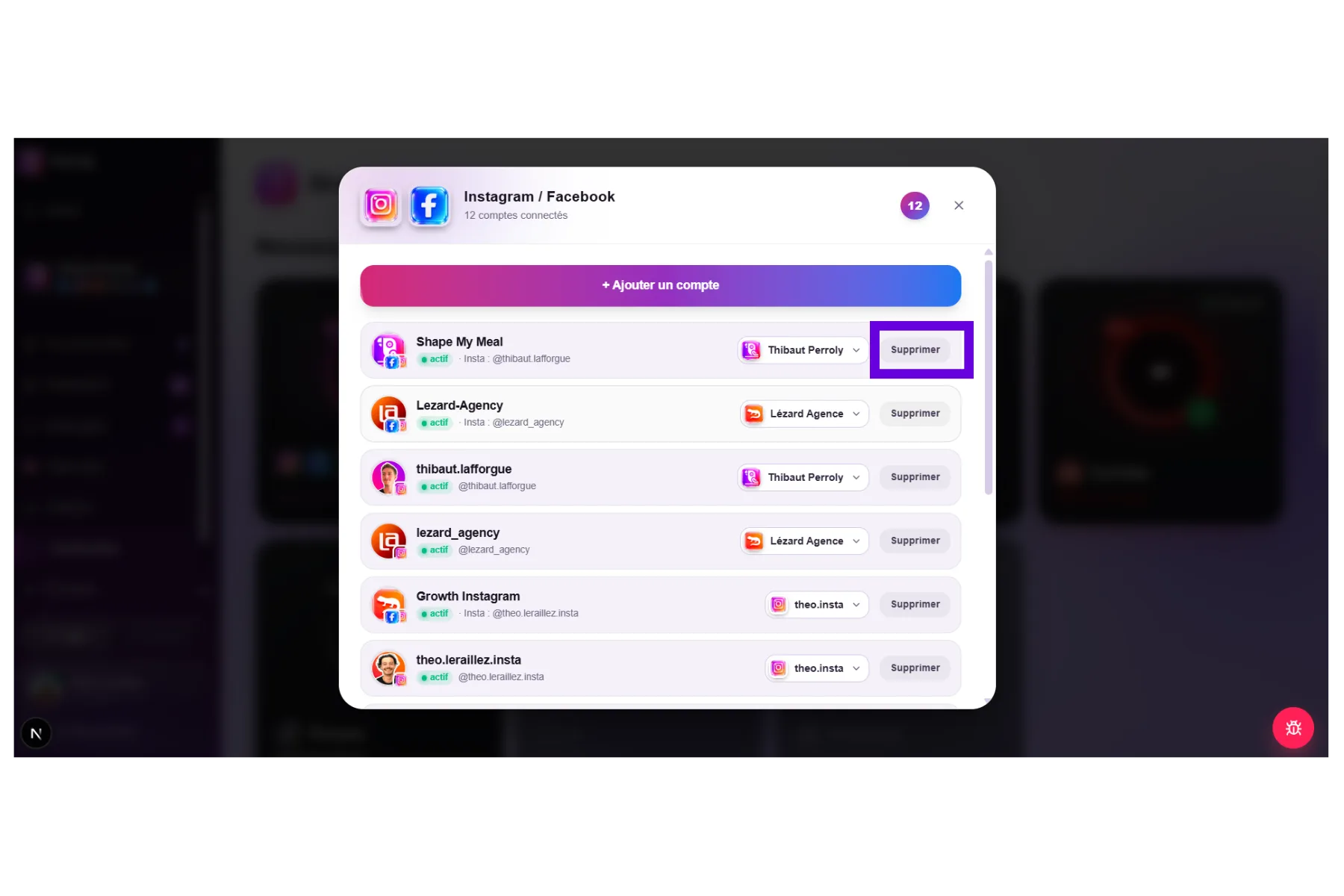
Once those points are checked, go to Perroly > Accounts, click Connect Facebook or Instagram, and follow the Meta window: sign in to your Facebook account, select the Page, then accept every requested permission (publishing, messaging, analytics).
Do not uncheck any of them. A single disabled permission can break publishing or messaging, with no error message to warn you. If several Pages appear, take the time to pick the right one: that choice determines which account gets connected.
Frequently asked questions
Can I connect a personal Instagram account to Perroly?
No. Meta’s API only allows third-party tools to connect to professional accounts (Business or Creator). Switching to a professional account is free and takes a few seconds from the Instagram app.
I am not an administrator of the Facebook Page, what should I do?
Ask whoever administers the Page to add you with full control (or the Admin role on a classic Page), from Facebook Page > Settings > Page access. Without that role, Meta will not even show the connection options.
Does switching to a professional account change anything for my followers?
No, the experience stays the same for your followers. A professional account simply unlocks detailed analytics and the ability to connect tools like Perroly.
Do I really need a Business Portfolio if I manage my accounts alone?
No, as long as you never run ads or work with an agency: the direct Page ↔ Instagram link is enough to connect Perroly. But if either shows up later, it is better to go through the Business Portfolio from the start to avoid restructuring everything afterward.
Meta tells me the Page already belongs to a business, what should I do?
That means the Page is already attached to someone else’s Business Portfolio. You cannot add it directly to yours: request access (the current owner will need to approve it), or have that owner confirm the connection.
Meta tells me "Unable to add Facebook Page" or that my business account has not followed its advertising policies, what should I do?
It is almost always the portfolio (or the personal profile behind it) that is targeted, not the Page. Open Account Quality (business.facebook.com/accountquality), request a review with your verification documents ready, and avoid sending multiple requests: you only get about three. See "If adding the Page fails" above for details.
My portfolio is blocked, can I still connect Perroly?
Yes. The restriction only affects advertising: link Instagram directly to your Page, without going through the portfolio, then connect it to Perroly. Publishing and messaging work normally. Sort out the portfolio and the ad account once Meta’s review is complete.
How do I remove a Page or Instagram account from a portfolio?
From Business settings > Accounts > Pages (or Instagram accounts), select the asset then Remove, and confirm. This deletes neither the Page nor the Instagram account themselves, only their attachment to that portfolio.
How do I find out who owns my Facebook Page?
Go to the Page’s profile, open the Page’s management history and look for a line like "[Name] was given full control of [Page]": that is likely the person who holds the rights.
I can’t reach "Linked accounts" on my Page, why?
This is almost always a role issue: you need full control on newer Pages, or the Admin role on classic Pages. Check your role under Facebook Page > Settings > Page access.
Instagram is asking me to sign in to someone else’s account, why?
Someone else already manages this Instagram account in their own Accounts Center. You will not be able to confirm the link from the Instagram app: go through Facebook (Linked accounts) instead if you have the right rights on the Page.
The Page is already linked to a different Instagram account, what now?
The link is one-to-one. Check the account currently linked on the Facebook side (Linked accounts > Instagram) and disconnect it to free up the Page before linking a new one.
The link is stuck waiting for confirmation, how do I unblock it?
The Page owner needs to confirm manually from the Instagram app: Edit profile, the Page section, then the orange confirmation icon. If it asks to sign in to Business Manager at that point, sign in there to validate it.
Still stuck after all that?
Sometimes the simplest fix is creating a new Page: you get full control by default, so no role issue at all. Give it a clearly distinct name so you can find it easily.